Google Deleted My Timeline: How to Keep a Location Diary on iPhone
Google Maps Timeline moved onto your phone, and some people lost years of history. Here's how to save what's left and keep a location diary on iPhone.
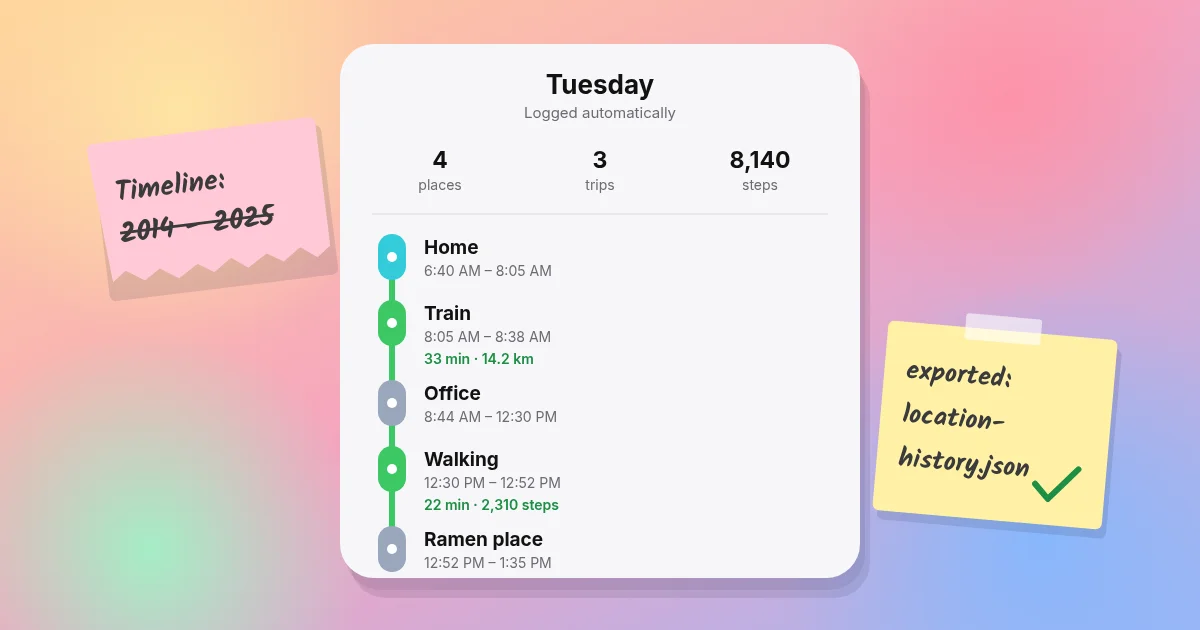
Key takeaways
- Google Maps Timeline now lives on your phone, not Google's servers. If the phone, the app or the backup goes, so can your history.
- Save what you have first: export Timeline from the Google Maps app on iPhone and keep the location-history.json file somewhere safe.
- Apple's own options (Significant Locations and Maps Visited Places) are private but limited. They aren't a full day-by-day diary.
- Dedicated timeline apps such as Arc Timeline and Kinetic log places and trips automatically. Compare where the data lives, what it costs and how you can get it out.
If Google Maps Timeline lost your history, or you just don't trust it anymore, the short answer is this. Export whatever Google still has on your phone today, then switch to an iPhone app that logs places and trips automatically and keeps the record on your device. Apple's built-in features cover part of the job. A dedicated timeline app covers the rest.
Here's what changed, what you can still save, and how the options compare.
What happened to Google Maps Timeline?
In December 2023, Google announced that Timeline (formerly Location History) would move from its servers onto your device, with an optional encrypted cloud backup. It also cut the default auto-delete for new users from 18 months to 3 months (Google). As part of the move, Timeline on the web was switched off and the feature became app-only (9to5Google).
On privacy, that was a real improvement. Google had already paid $391.5 million to settle with 40 US states over how it handled location tracking (AP). The catch is that your history now depends on one phone, one app and whether you turned on backup.
Did I lose my Timeline history, and can I get it back?
Possibly. In March 2025 a technical problem deleted Timeline data for some users. Google said people with encrypted backups could restore it, and people without a backup generally couldn't (The Verge).
What to check today:
- Open Google Maps → your profile picture → Your Timeline. If days are still there, export them now (next section).
- Tap the cloud icon. This shows whether backup is on and lets you restore from a backup on a new phone (Google Maps Help).
- Check your auto-delete setting. If it's set to 3 months, older days are deleted on purpose, not by a bug.
If the history is gone and there was no backup, no app (including ours) can bring it back. The best you can do is make sure it doesn't happen again.
How do I export my Google Timeline on iPhone?
Google's help page for iPhone gives this route: in Google Maps, tap your profile picture → Settings → Personal content → Location settings → Export Timeline data, then save the file to Files (Google Maps Help). You get a JSON file of the Timeline stored on that phone.
A few practical tips:
- Save it twice: once in iCloud Drive or Files, and once on a computer or external drive.
- Rename it with the date, for example
google-timeline-2026-10-19.json, so you know which export is which. - Don't expect a perfect import elsewhere. Google's format isn't a standard that every app reads. Keep the file as an archive even if your new app can't load it.
What does iPhone already record on its own?
Before installing anything, it helps to know what your iPhone already does.
Significant Locations. iOS learns places that matter to you for features like Maps suggestions and Photos Memories. Apple says this data is end-to-end encrypted and can't be read by Apple. You'll find it in Settings → Privacy & Security → Location Services → System Services (Apple Support). It isn't a diary, though: there's no day view, no trips and no export.
Visited Places in Apple Maps. Newer versions of Apple Maps can keep a list of places you've visited. You can search it by name, category or city, add notes, fix wrong places, and choose how long visits are kept. Apple says Visited Places are end-to-end encrypted and can't be read by Apple. It's not available in every country or region (Apple Support).
For "what was that restaurant in Lisbon?", that may be all you need. Google Timeline did more, though: it showed how you got somewhere, how long you stayed, and your whole day as a line on a map.
What should a Google Timeline alternative do?
Here's the checklist we'd use, whichever app you pick:
| What to check | Why it matters |
|---|---|
| Automatic logging | If you have to press "start", you'll forget. Timeline worked because it just ran. |
| Places and trips | Visits alone miss the walk, the train and the drive in between. |
| Where the data lives | On your device, on the company's servers, or both? This decides who can see it and what happens if the company changes its mind. |
| Backup you control | The Timeline lesson: one device and no backup means one bad day can wipe years. |
| Export | Can you get your data out in a standard format? |
| Account required? | No account usually means less personal data tied to you. |
| Battery | Constant GPS drains phones. Good apps rest when you're not moving. |
| Price model | Free apps have to make money somehow. Read the App Store privacy label. |
Which iPhone apps can replace Google Timeline?
There's no perfect clone, but here are the main options, checked October 2026:
| Option | Logs automatically | Trips + activity type | Where data lives | Export | Price |
|---|---|---|---|---|---|
| Google Maps Timeline (still on iPhone) | Yes | Yes | On your phone; optional encrypted backup with Google | JSON | Free |
| Apple Maps Visited Places | Yes | No (places only) | End-to-end encrypted, synced across your devices | Not offered | Free, built in |
| Arc Timeline 4 | Yes | Yes (20+ activity types) | On device; optional backup to your private iCloud | JSON, GPX | Free trial, then $4.99/mo, $44.99/yr or $219.99 lifetime |
| Kinetic | Yes | Yes (walks, drives, rides, workouts) plus steps and sleep | On your iPhone; backed up to your own iCloud | Not offered | First year free, then $19.99/yr |
Sources: Google Maps Help, Apple Support, Arc Timeline 4 on the App Store. Prices change, so check before you buy.
Arc Timeline is the long-standing specialist. It's been around since the Moves days and it's the one to beat for detailed location history. We wrote an honest Kinetic vs Arc comparison if you're deciding between the two.
Apple Maps Visited Places is the zero-effort option if you mainly want to remember places, not routes.
Staying on Google is reasonable too, if you turn on backup and export regularly.
How does Kinetic keep a location diary?
Kinetic was built for people who miss the "your phone just knew" days of Moves and Google Timeline (we covered what happened to those apps). It logs your steps, places, walks, drives, rides, workouts and sleep, then draws your day as a timeline. You don't start or stop anything.
- No account. There's nothing to sign up for.
- Your activity stays yours. It's saved on your iPhone and backed up to your own iCloud. We never see your health or location data.
- No ads, and never sold. There are no ads in Kinetic, and we'll never sell your data.
- Place names come from Apple Maps, which receives location to draw maps and look up names. Our privacy policy has the details.
- Battery manners. Background location pauses when you settle somewhere and switches off in Low Power Mode.
Curious what any app on your phone collects? We wrote a guide to checking an app's data practices in a couple of minutes.
How do I switch without losing anything?
- Export your Google Timeline today and save it in two places.
- Decide whether to keep Google running for a few weeks while you test a new app. Two trackers can run side by side.
- Install your new app and grant location access. Timeline-style apps need "Always" location to log in the background. iOS will remind you now and then that the app is using it. That's normal.
- Give it a week. Automatic apps learn your regular places, so the first days are the roughest.
- Turn on backup in whichever app you settle on, and test a restore or export once.
Kinetic arrives on the App Store Nov 3, with your first year free.
Sources
- Google, "Updates to Location History and new controls coming soon to Maps" (Dec 2023): https://blog.google/products-and-platforms/products/maps/updates-to-location-history-and-new-controls-coming-soon-to-maps/
- 9to5Google, on-device Timeline and the end of web Timeline (Dec 2024): https://9to5google.com/2024/12/11/google-maps-on-device-timeline/
- The Verge, Timeline data deleted; backups needed to recover (Mar 2025): https://www.theverge.com/news/634442/google-maps-timeline-data-deleted-cloud-backup-recovery
- AP, Google $391.5M location-tracking settlement (Nov 2022): https://apnews.com/article/google-privacy-settlement-location-data-57da4f0d3ae5d69b14f4b284dd084cca
- Google Maps Help, Manage your Google Maps Timeline (iPhone & iPad): https://support.google.com/maps/answer/6258979?co=GENIE.Platform%3DiOS&hl=en
- Apple Support, Manage Location Services settings (Significant Locations): https://support.apple.com/guide/personal-safety/manage-location-services-settings-ips9bf20ad2f/web
- Apple Support, View Visited Places in Maps on iPhone: https://support.apple.com/guide/iphone/view-and-manage-visited-places-iph0c2597c4f/ios
- Arc Timeline 4, App Store listing (checked Oct 2026): https://apps.apple.com/us/app/arc-timeline-4/id6740688708